Unlock 120 FPS Without Shizuku – Easy Manual Method in 120 FPS GFX Tool
Unlock 120 FPS Without Shizuku: In this article, you will learn how to unlock 120 FPS without using Shizuku by applying a 120 FPS file saved from the 120 FPS GFX Tool. This manual method is simple, safe, and easy to follow, even for beginners. I will explain the step-by-step process so you can enable 120 FPS and enjoy smoother, faster gameplay. Let’s get start It
Manual Method for Devices Without Shizuku
Some Android devices do not support Wireless Debugging, so Shizuku does not work on those phones. Because of this, the GFX Tool may also fail to apply 120 FPS automatically. For such devices, the manual method is the best solution. In this method, you can manually apply the 120 FPS file and unlock 120 FPS without using Shizuku. This process helps you enjoy smoother gameplay even on devices where the normal method does not work.
Save the 120 FPS File from 120 FPS GFX Tool
- First, open the 120 FPS GFX Tool App on your device.
- Next, select your game version
- After that, Slide “Unlock 120 FPS” option
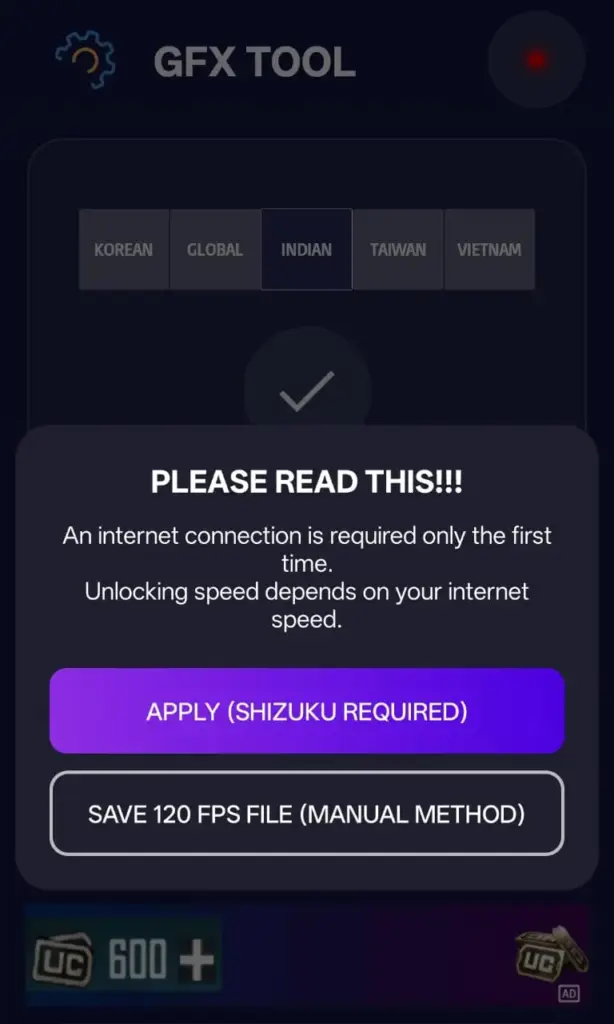
- Now, a popup will appear on the screen. Click on “Save 120 FPS File”
- Now, a download page from the website will open. Click on Proceed.
- Finally, click on Get 120 FPS File to download and save the file on your phone.
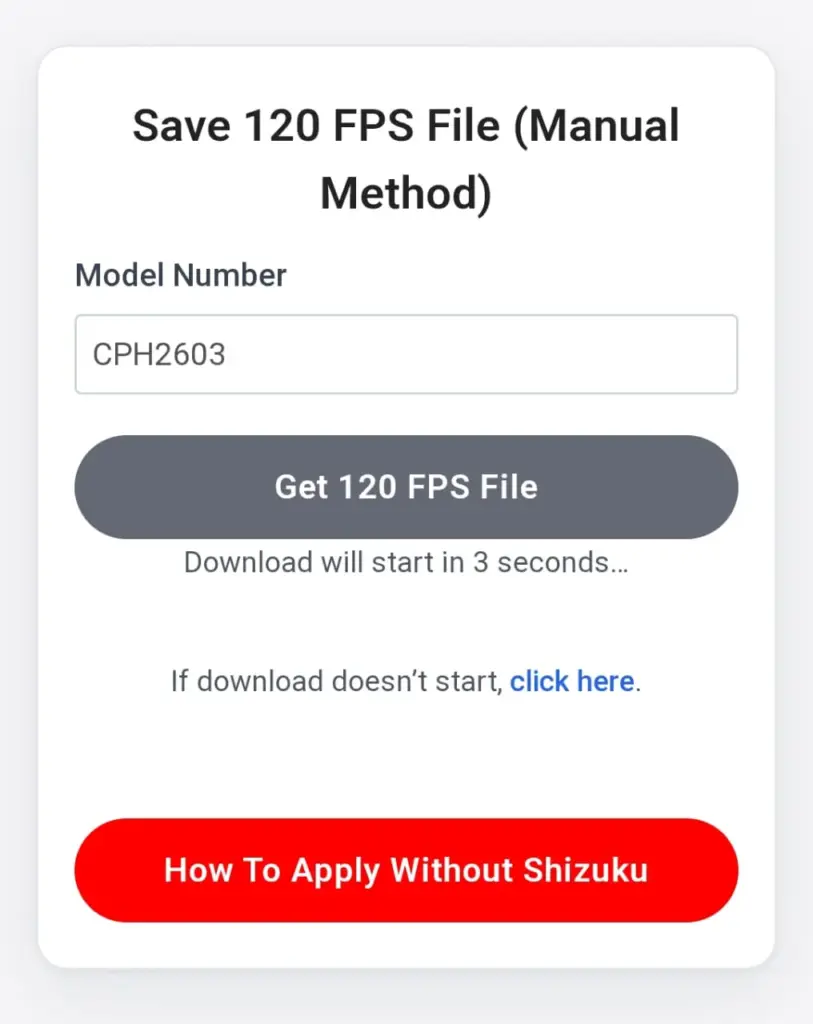
✅ The 120 FPS file is now saved successfully. You can move to the next step to apply it manually without Shizuku.
Manually Apply the 120 FPS File Without Using Shizuku
After Getting 120 FPS File Install Zarchiver From Playstore Or Use MT Manager or Below Link
Get Zarchiver Or MT Manager App
Step-by-Step Guide:
- Open ZArchiver
Launch the ZArchiver app and allow all required file access permissions. - Go to the Download Folder
In ZArchiver, open the Download folder and locate the 120 FPS file you downloaded. - Copy the 120 FPS File
Long-press on the 120 FPS file and tap Copy. - Navigate to the Game Folder
In ZArchiver, go to the following path:Android/data/Game Folder/files/UE4Game/ShadowTrackerExtra/ShadowTrackerExtra/Saved/PaksIf Android asks for permission, allow access to Android/data. - Paste the 120 FPS File
Open the Paks folder and tap Paste to place the 120 FPS file there.
✅ The file is now applied successfully.
Now open PUBG/BGMI, go to Graphics & Frame Rate settings, and you should see 120 FPS unlocked.
Restart the game once if the option does not appear immediately.
Conclusion
By following this manual method, you can easily unlock and apply 120 FPS without using Shizuku, even on devices where wireless debugging is not supported. Saving the 120 FPS file from the 120 FPS GFX Tool and applying it manually using ZArchiver is a simple and effective solution.
This method does not require root access and works on most supported devices. Once applied correctly, you can enjoy ultra-smooth gameplay, better responsiveness, and reduced lag in PUBG/BGMI.
If you face any issues, recheck the file path and restart the game to apply the changes properly.